
Social media notifications are essential for staying connected with your audience. Whether you’re a musician, influencer or content creator, notifications let you know when fans comment, share, or engage with your posts.
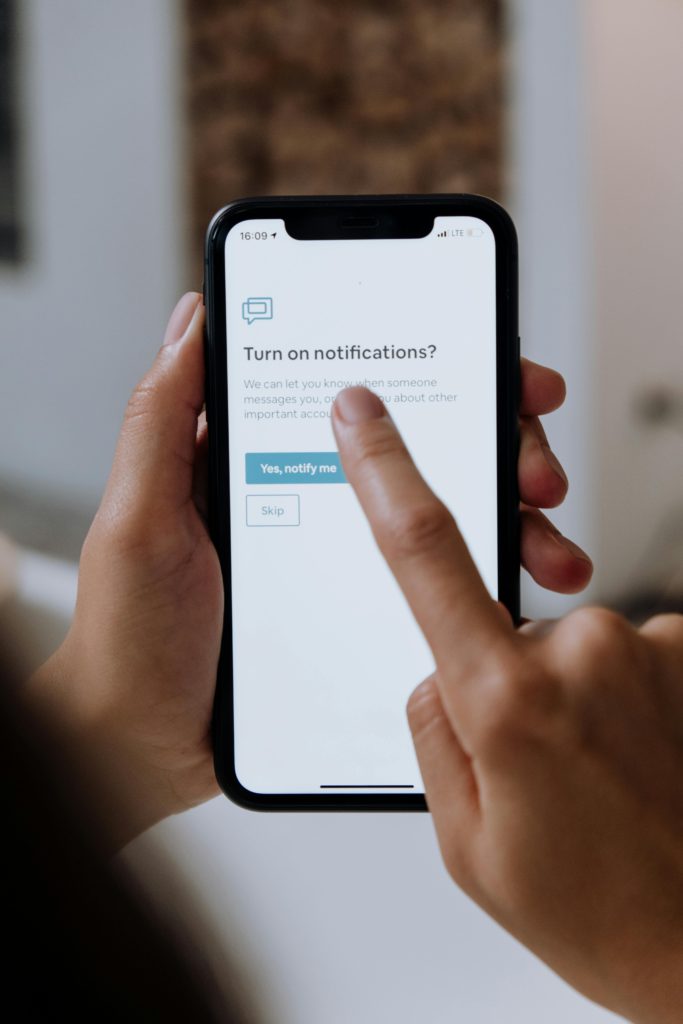
But sometimes, notifications stop working – and it can be frustrating not to know why. In this guide, we’ll explain the common reasons notifications aren’t working and show you how to turn them back on across different devices and platforms.
Common reasons notifications aren’t working
Notifications can fail for several reasons. Understanding the cause is the first step to fixing the problem.
1. App settings are turned off
Many platforms allow you to customise which notifications you receive. If certain alerts are disabled in the app, you won’t see them.
2. Device settings block notifications
Even if your app settings are correct, your phone or tablet may prevent notifications from appearing.
- On iOS, check Settings > Notifications for the app.
- On Android, go to Settings > Apps & notifications.
3. Do Not Disturb or Focus mode is active
If Do Not Disturb or Focus mode is on, your device may block notifications temporarily.
4. Outdated app version
Older versions of social media apps may have bugs that affect notifications. Updating the app often resolves these issues.
5. Network or connectivity issues
Notifications rely on an internet connection. Poor Wi-Fi or mobile data can prevent alerts from coming through.
How to turn notifications back on
Here are practical steps to restore notifications across devices and platforms.
1. Check app notification settings
- Open your social media app and navigate to Settings > Notifications.
- Make sure all the alerts you want are switched on (likes, comments, messages, mentions, etc.).
2. Check device notification settings
- iOS: Settings > Notifications > [App Name] > Allow Notifications.
- Android: Settings > Apps > [App Name] > Notifications > Enable.
- Ensure sounds, banners and lock screen alerts are enabled.
3. Disable Do Not Disturb or Focus mode
- On iOS, swipe down to open Control Centre and check the crescent moon or Focus icons.
- On Android, swipe down and look for the Do Not Disturb icon.
4. Update your app
- Visit the App Store or Google Play Store.
- Check for updates and install the latest version.
- Restart the app after updating.
5. Reinstall the app if necessary
If notifications still don’t work, uninstalling and reinstalling the app can reset settings and resolve glitches.
6. Check network connection
- Make sure your device has a stable internet connection.
- Switch between Wi-Fi and mobile data to test.
Tips for staying on top of notifications
Notifications are crucial for keeping track of engagement, messages and updates across social media. By checking app and device settings, disabling Do Not Disturb, updating apps, and ensuring a stable connection, you can get notifications back on track.
For creators, musicians and influencers, timely notifications allow you to respond quickly to fans, grow engagement and maintain a professional presence online.